Guidance for Recording Class Sessions with TechConnect (Confer) Zoom
Recordings of live ConferZoom sessions are sometimes used to allow students to watch a missed class session, to review an earlier session, or shared with a future class. Depending on who is shown in the recording, they may constitute educational records that are protected under the Family Educational Rights and Privacy Act (FERPA) -- the federal student privacy law. This guidance explains acceptable practices for utilizing instructional video and audio recordings.
The FAQs below contain some specific questions about recording instructional Zoom sessions. Additional information about photos, video, and audio recording under FERPA can be found on the US Department of Education FAQs on Photos and Videos under FERPA. If you have questions about your specific recording situation, contact your college’s Chief Instructional Officer.
Are video or audio recordings of lectures a protected student record?
If a recording includes only the instructor, it is not a student record and FERPA does not limit its use. If the recording includes students asking questions, making presentations or leading a class (other than TAs), and it is possible to identify the student, then the portions containing recordings of the student do constitute protected educational records. Educational records can only be used as permitted by FERPA or in a manner allowed by a written consent from the student.
What Recording settings should I select in my Zoom account to best ensure students are not recorded in the archive?
Before you schedule your meetings:
- Go to Zoom.us and log into your ConferZoom account.
- Click on My Account (upper right)
- In the left column, select Settings
- Select the Recording tab and choose the following settings:
- Disable Local Recording. For most instructors, recordings should be kept in the cloud and not downloaded to a local computer.
- If you wish to have a video of the speaker recorded during screensharing, enable Record active speaker with shared screen
- Disable Record gallery view with shared screen
- Disable Display participants’ names in the recording
- Enable Multiple audio notifications of recorded meeting, which plays an automated message whenever a recording is started, or a participant enters a session that is already being recorded.
When your meeting starts, keep your Zoom view set to Speaker View (as opposed to Gallery View). This ensures that only the person who is speaking appears on the screen, as opposed to recording a grid view of all attendees with webcams enabled.
Can an instructor require students to show their video during a Zoom session/recording?
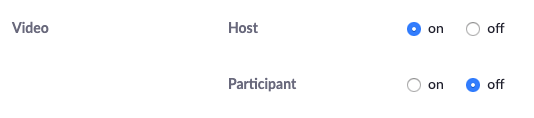
No. This is problematic for several reasons. Students may not have a webcam or may not want to show where they are located. When you schedule your meeting, you are advised to set Participant Video to Off to allow students to opt into sharing their video.
Can an instructor publicly share a screen capture of a Zoom session or recording that shows one or more identifiable students?
No. Unless FERPA compliance through use of consents has been given. Screenshots should not be shown on Facebook, Twitter, or any other public platform.
Can students publicly share class recordings or screen captures of a Zoom session or recording that show one or more identifiable students?
No. Instructors should tell students that they should not share the link to any class sessions, or take screen captures of Zoom sessions. Students that violate this request can be subject to the student code of conduct.
Can the instructor show recordings from last year’s class to the current class?
Under FERPA, this situation must be treated as if the recordings were being shown to a third-party audience which requires FERPA compliance through use of consents from identifiable students or by editing out those students from the video.
If the instructor wants to allow access to a video (that shows students participating) to others outside of the class, is this permitted?
Possibly. There are a couple of ways to use recordings that show students participating.
- The instructor may obtain individualized written FERPA consents from the students shown in the recording. This type of consent can be obtained on a case-by-case basis or from all the students at the outset of a class.
- Recordings can be edited to remove portions of the video that show students who have not consented to the use of their voice and/or image (simply blurring a student’s image and removing their name is not sufficient, as the student may still be identified).
What is the easiest way to comply with FERPA if I am video recording my class sessions, students will be asking questions/doing presentations, and I wish to share the recording with a future class?
- Record only the parts of your session that show you. Plan to hold specific Q&A periods during the session and when you get to one, click Pause recording.
When you are ready to present again, Resume recording. - Don’t refer to students by name (de-identifying the students removes the need for a specific consent from each student depicted). If a student happens to appear on camera, their identity can be edited out or written consent can be obtained.
- Videos of students giving presentations and student-generated video projects are covered by FERPA and copyright (students own the copyright of their work, just as any other author/creator). Therefore, written permission to use these digital works must be obtained by the student.
How do I obtain written consent from a student?
Check with your college to determine how to obtain written FERPA consent from students for instructional video recordings. Colleges are advised to have a digital consent form available to ensure it is not a barrier for students in online courses.
View Zoom's FERPA Compliance overview.
TechConnect (Confer) Zoom is supported by TechConnect and funded by the California Community College Chancellor's Office. It provides all CCC faculty and staff with an upgraded, Pro/Licensed Zoom Account. For more information and support, please visit the TechConnect website.
 This document by Michelle Pacansky-Brock and CVC-OEI was adapted from works by Erin Whitteck and Jingrong (Pearl) Xie of University of Missouri, St. Louis and Rice University.It is shared with a CC-BY-NC license. You are free to re-mix it without permission, provided you attribute the authors.